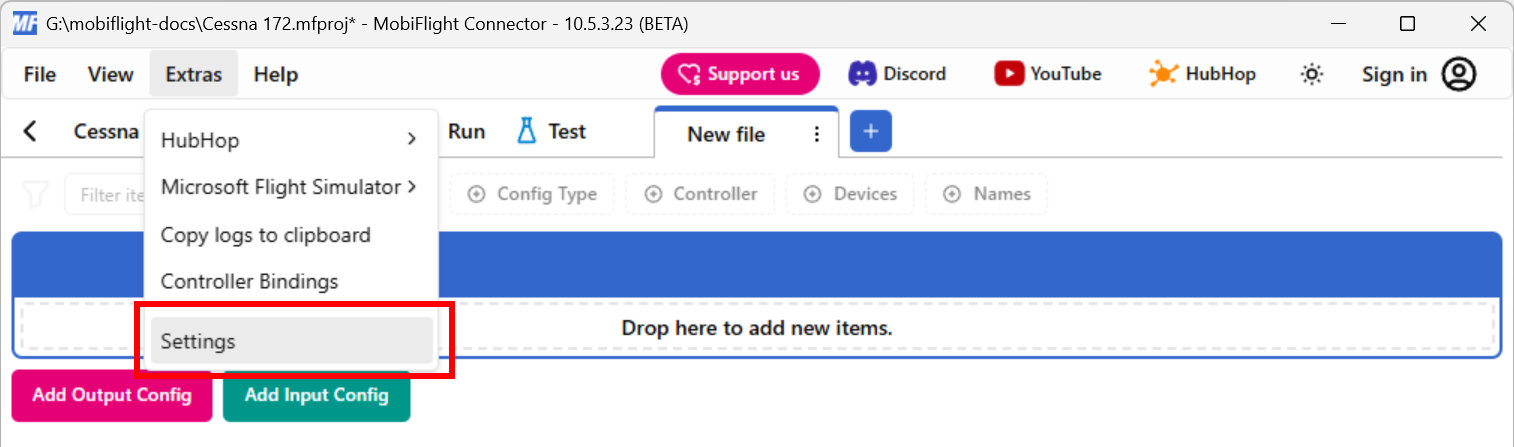
Sharing logs
MobiFlight logs make it easier for people to answer support questions in Discord. The following steps show how to enable and share logs from MobiFlight.
Important
Always share the complete log file using these steps when requested. Sharing partial logs, or screenshots of logs, delays support and makes it harder to resolve questions.
Re-create the issue
Re-create the issue. Depending on the problem, this may include:
- Closing and running MobiFlight.
- Attempting to update the board firmware.
- Interacting with devices.
- Triggering events in the simulator.
Copy the logs to the clipboard
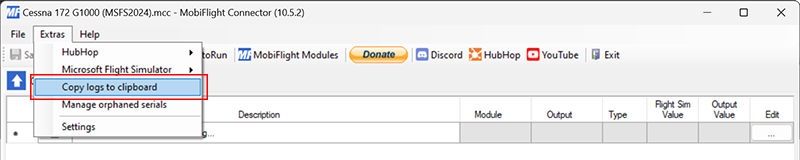
After re-creating the issue, copy the logs to the clipboard by going to the Extras menu and selecting Copy logs to clipboard. A success dialog will show after the logs are copied.
Paste the logs in Discord
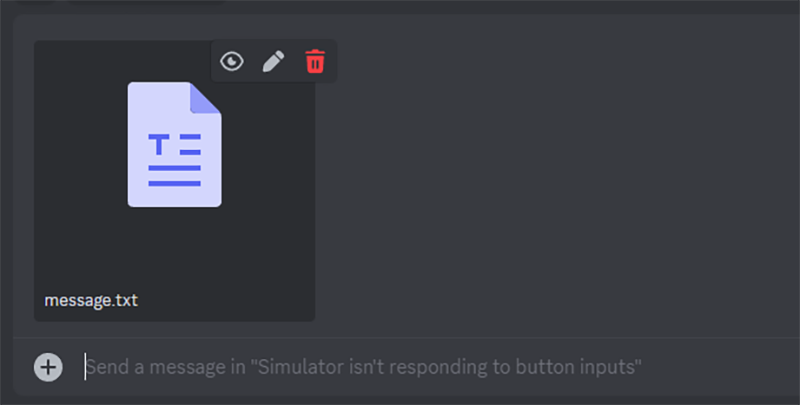
Switch to Discord and click in the message box for the support thread, then press CTRL+V to paste the logs. Discord will automatically convert the logs to a text attachment.
Changing the log level
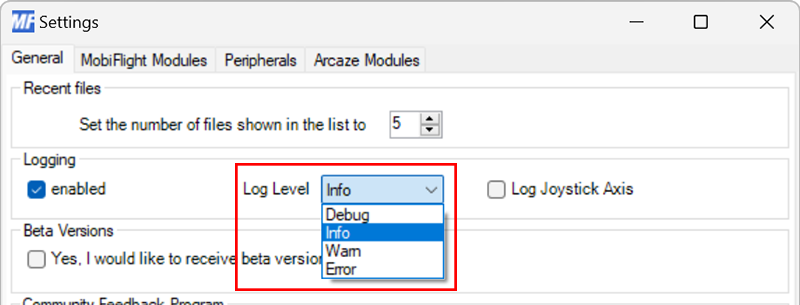
In some instances you may be asked to adjust the log level to ensure additional debugging information is captured. To adjust the log level: