Adding the device
Important
Adding a servo to an Arduino Uno or Arduino Nano disables the PWM capability of pin D9 and D10.
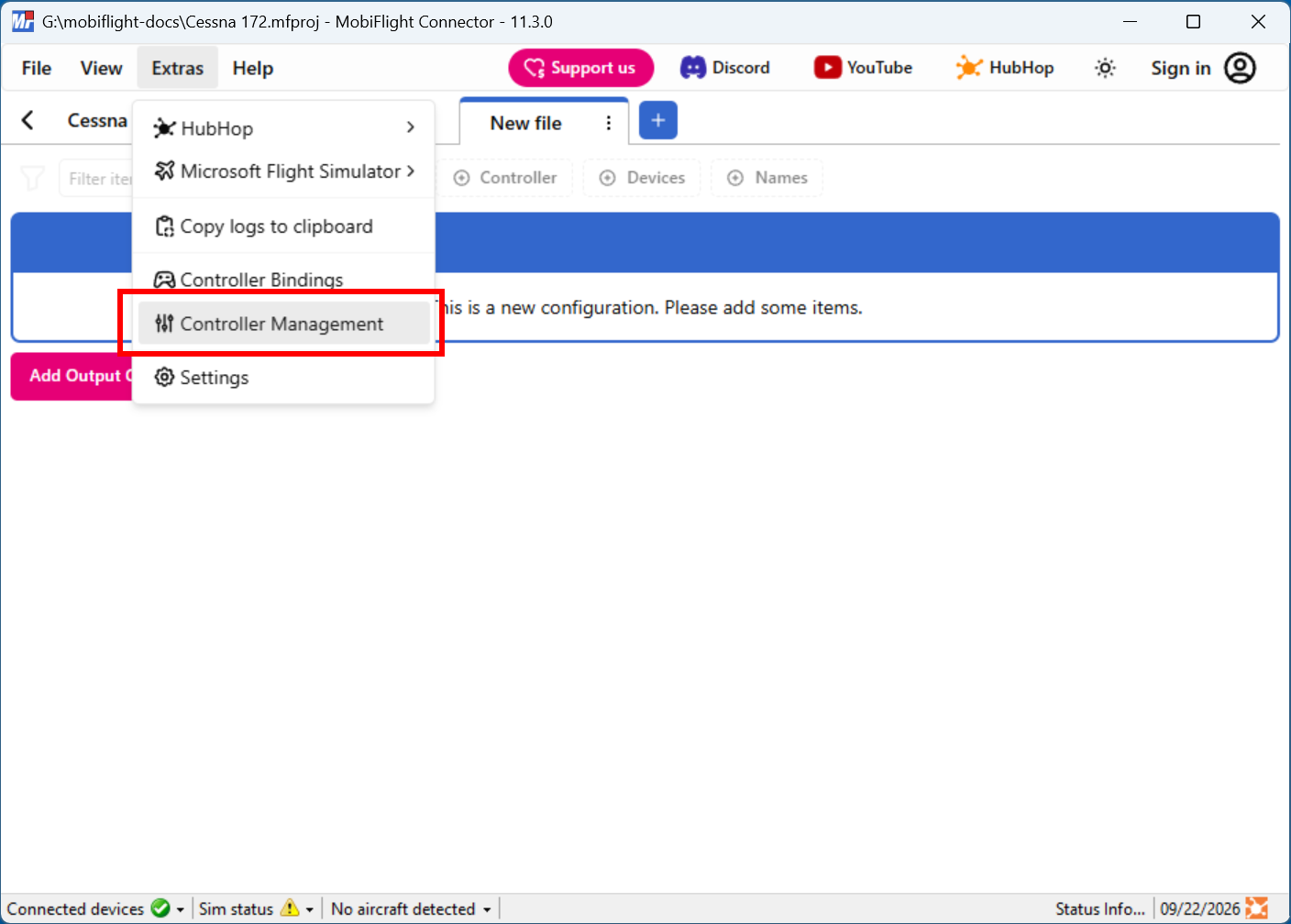
Open the Controller Management dialog
Click on the Extras menu and select Controller Management to open the Controller Management dialog.
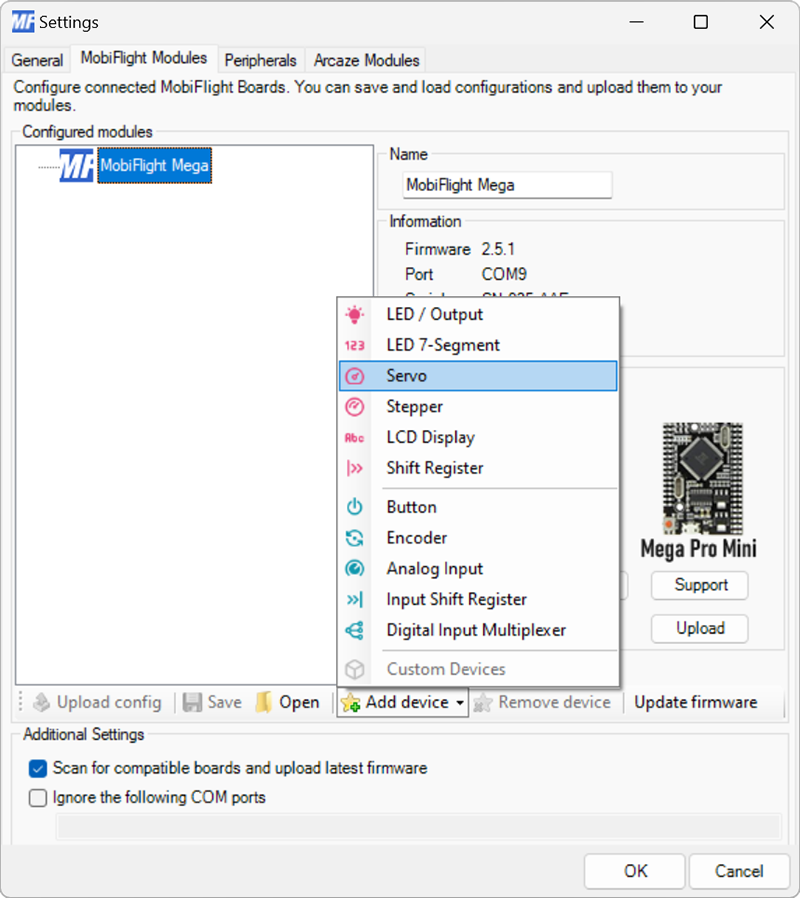
Add the servo
Click on the board the device is connected, then select Servo from the Add device menu.
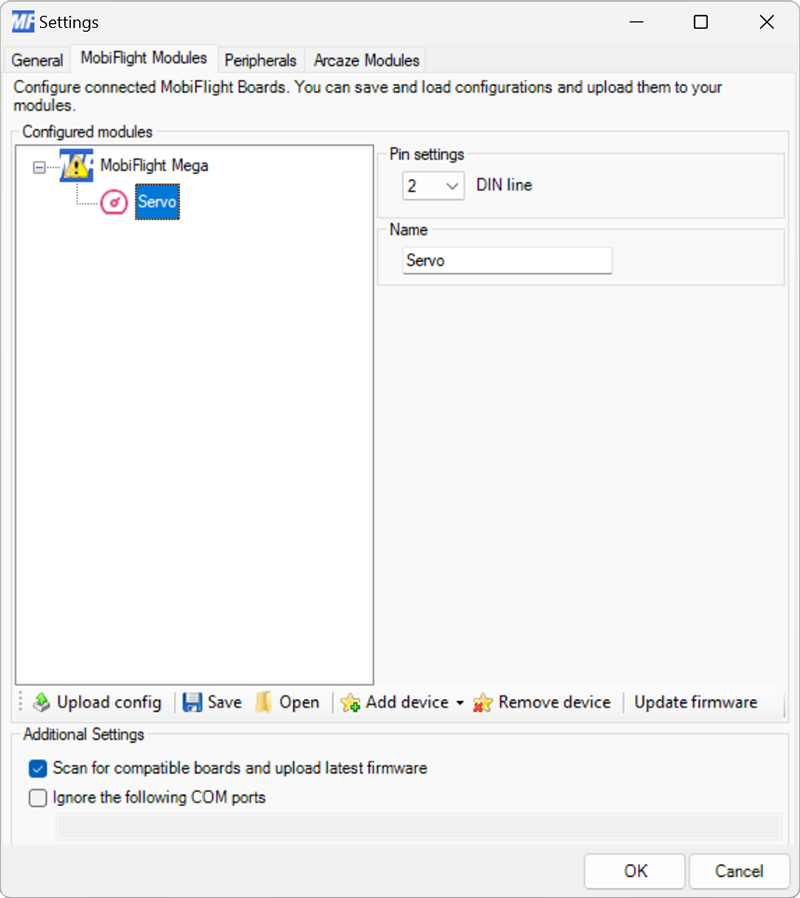
Configure the servo
Use the DIN line dropdown to specify the board pin the servo is connected to.
Provide a meaningful name for the servo in the Name field. This name is shown in the output configuration screens when assigning the servo to a flight simulator output.
Upload the changes to the board
Click the Upload config button at the bottom of the MobiFlight Modules tab to upload the modified configuration to the board.

Close the MobiFlight modules dialog
Click the OK button to close the MobiFlight modules dialog and return to the main app window.