Adding the device
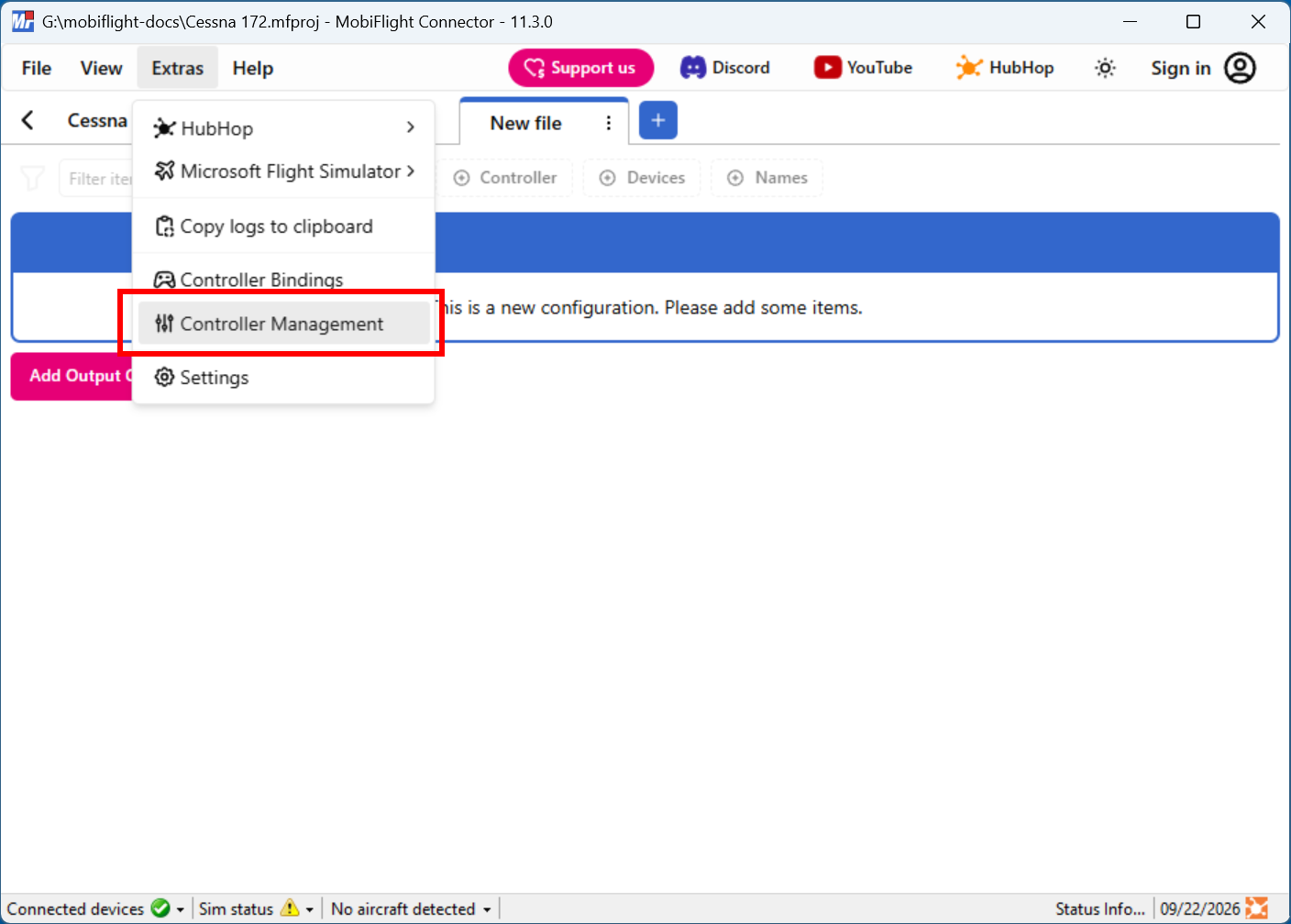
Open the Controller Management dialog
Click on the Extras menu and select Controller Management to open the Controller Management dialog.
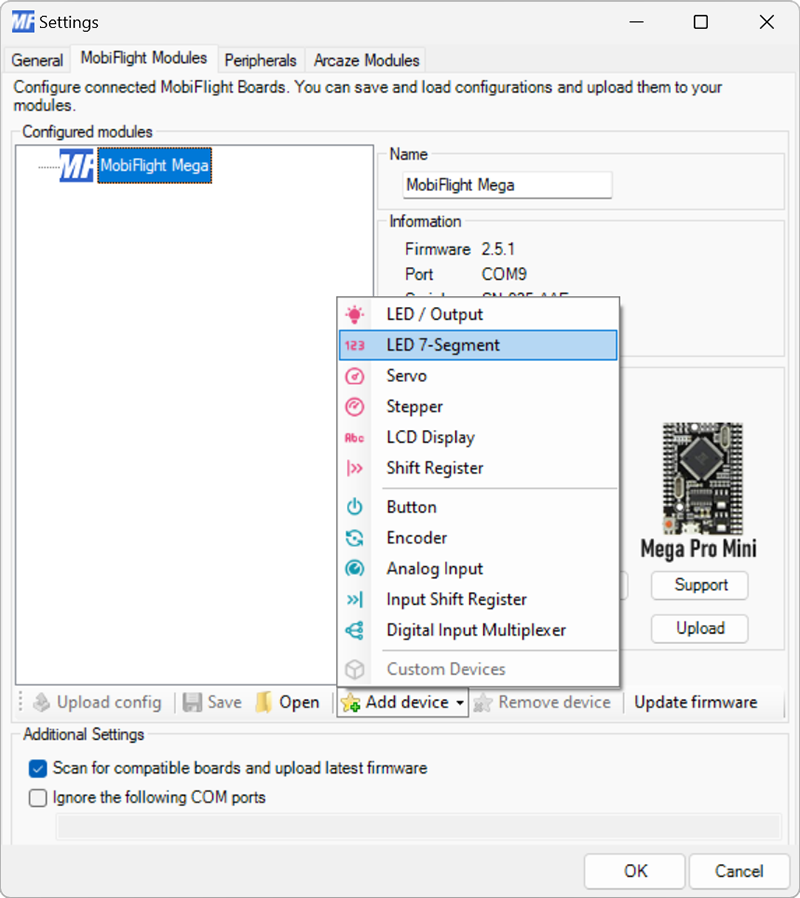
Add the display module
Click on the board the device is connected to, then select LED 7-Segment from the Add device menu.
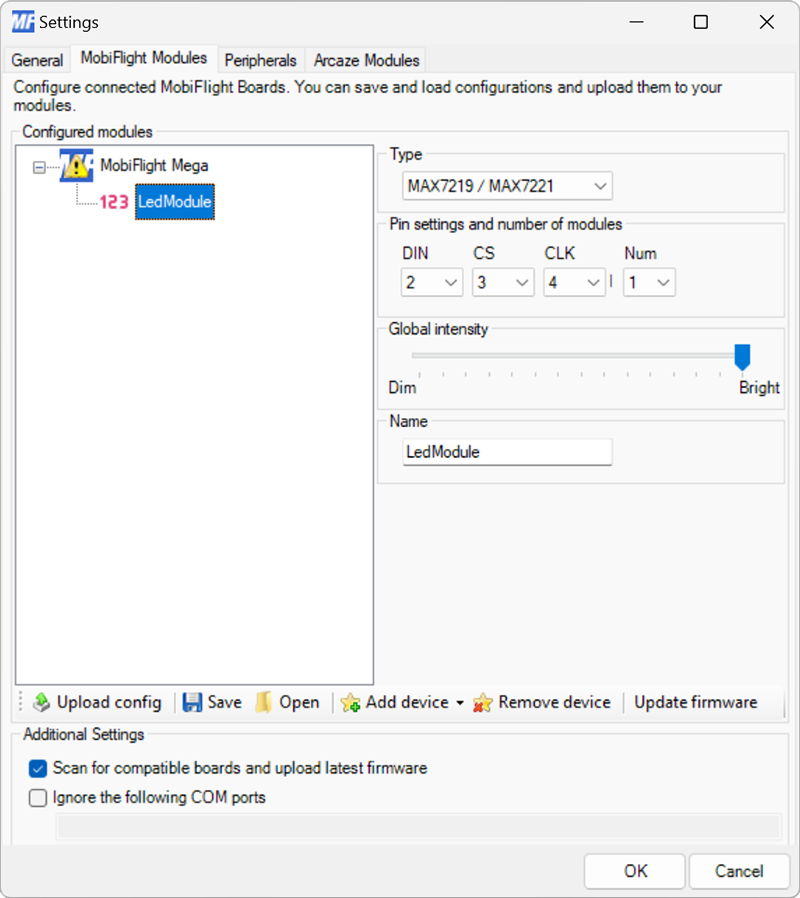
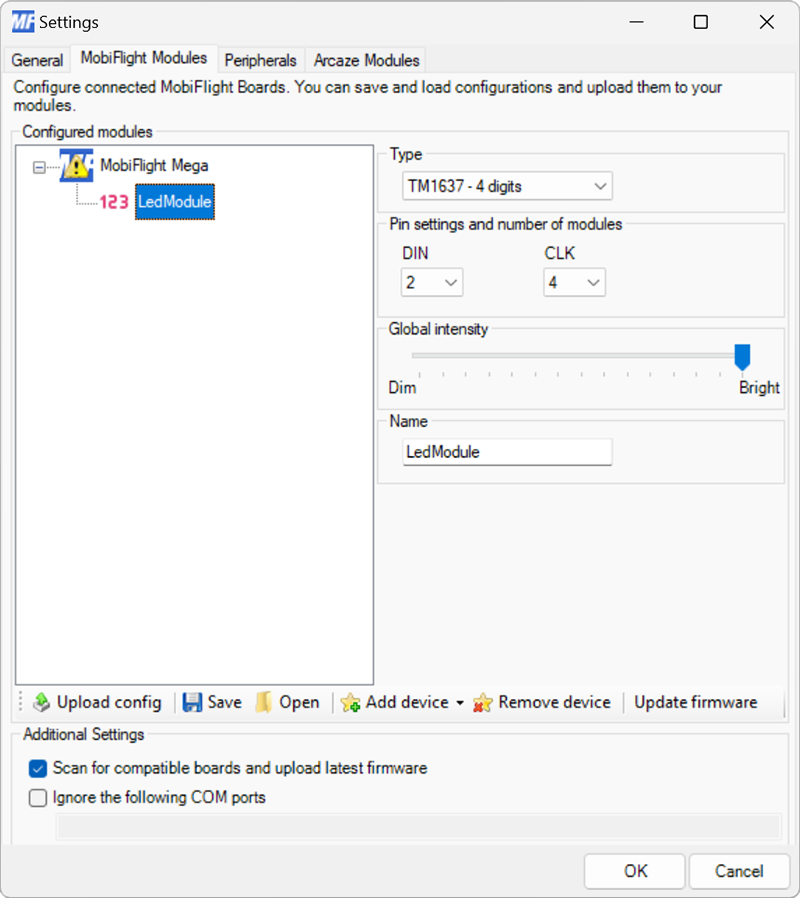
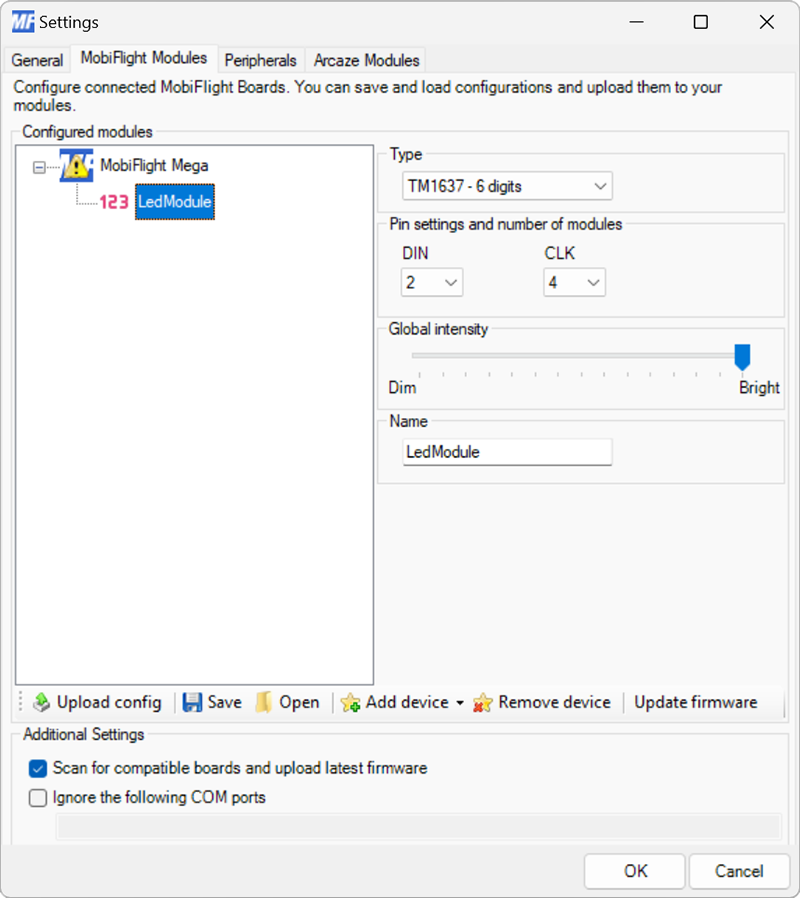
Configure the display
Select MAX7219 / MAX7221 from the Type dropdown.
Use the DIN, CS, and CLK dropdowns to specify the board pins used. Specify the number of display modules connected in series using the Num dropdown.
Provide a meaningful name for the display module in the Name field. This name is shown in the output configuration screens when assigning the display to a flight simulator output.
Upload the changes to the board
Click the Upload config button at the bottom of the MobiFlight Modules tab to upload the modified configuration to the board.

Close the MobiFlight modules dialog
Click the OK button to close the MobiFlight modules dialog and return to the main app window.