Configuring three-position switch input
Three-position switches are typically mapped to three different simulator variables that expect either 0 (for off) or 1 (for on). Despite controlling three different variables, only two input configurations are used in MobiFlight to create the mapping between the switch and simulator.
The following steps demonstrate how to configure a three-position switch to control the STBY BATT switch in a Cessna 172 in Microsoft Flight Simulator 2024.
Tip
The steps for using a switch in an X-Plane project are similar. Use the X-Plane (All versions) type when configuring the Action type.
Configure the switch up position
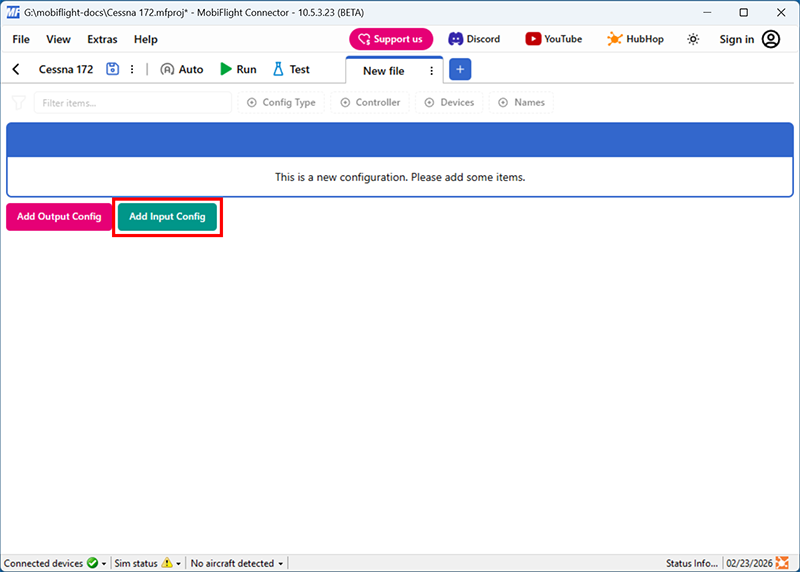
Add a new input config
Click the Add Input Config button in the main MobiFlight window to open the input configuration dialog.
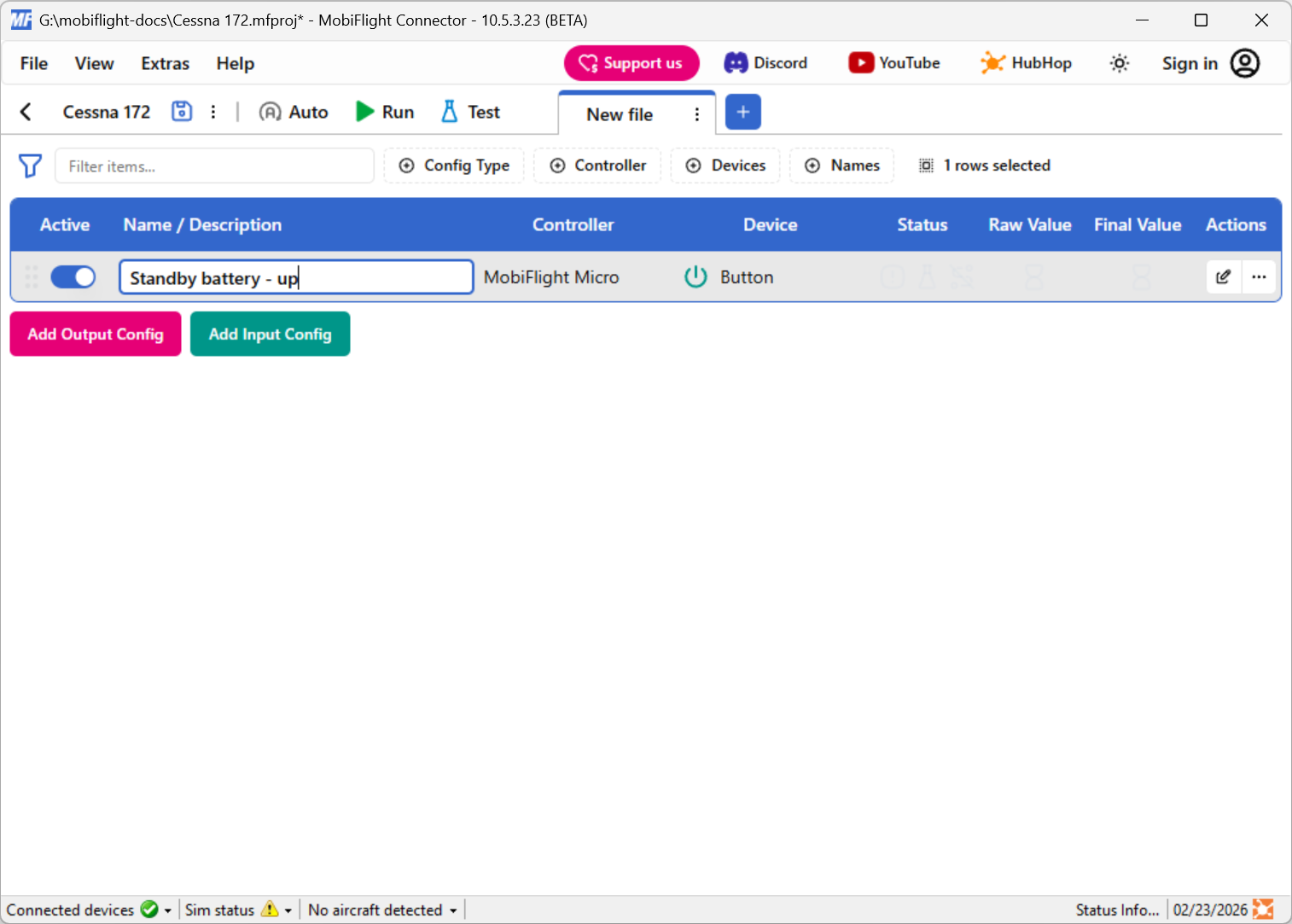
Name the config
Type in a meaningful name for the new config in the header of the dialog, for example Standby battery - up, and press enter to apply the change.
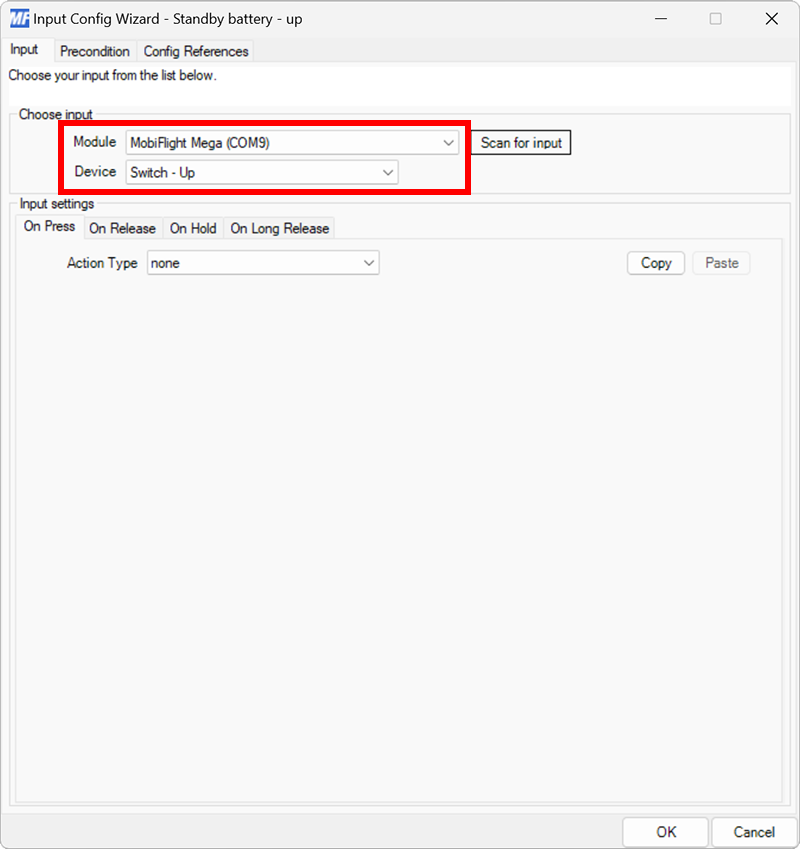
Select the board and device for the input
In the Trigger section, use the Select controller… and Select device… dropdowns to select your connected board and switch.
Alternatively, press the Scan for input button and toggle the switch to automatically detect and select the correct switch.
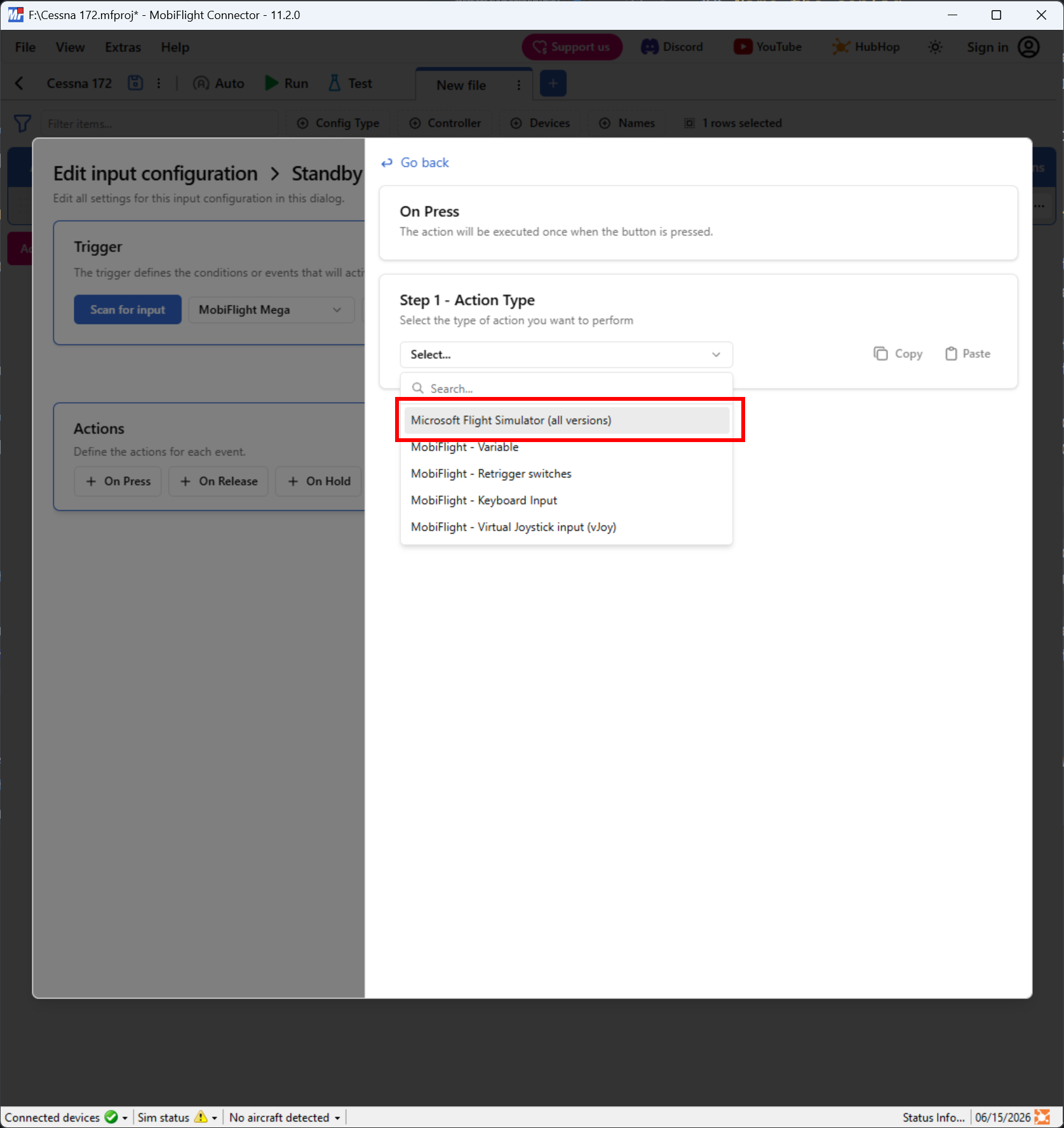
Set the On Press action type
In the Actions section, select the On Press button. Use the Action Type dropdown to select Microsoft Flight Simulator (all versions).
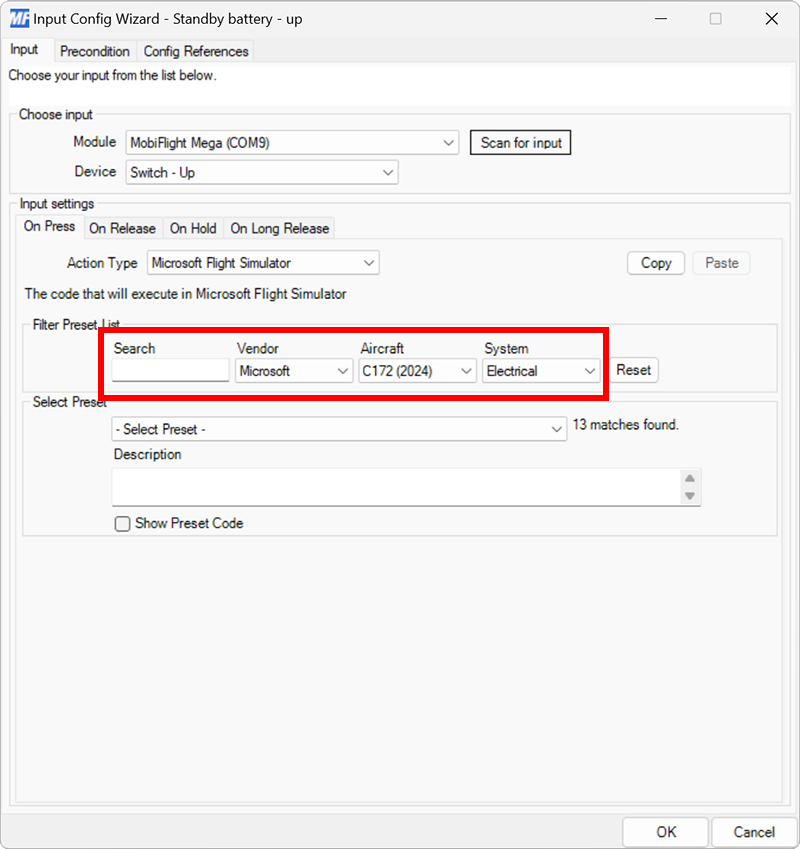
Filter the presets list
Use the Select preset dropdowns to filter by Microsoft, C172 (2024), and Electrical.
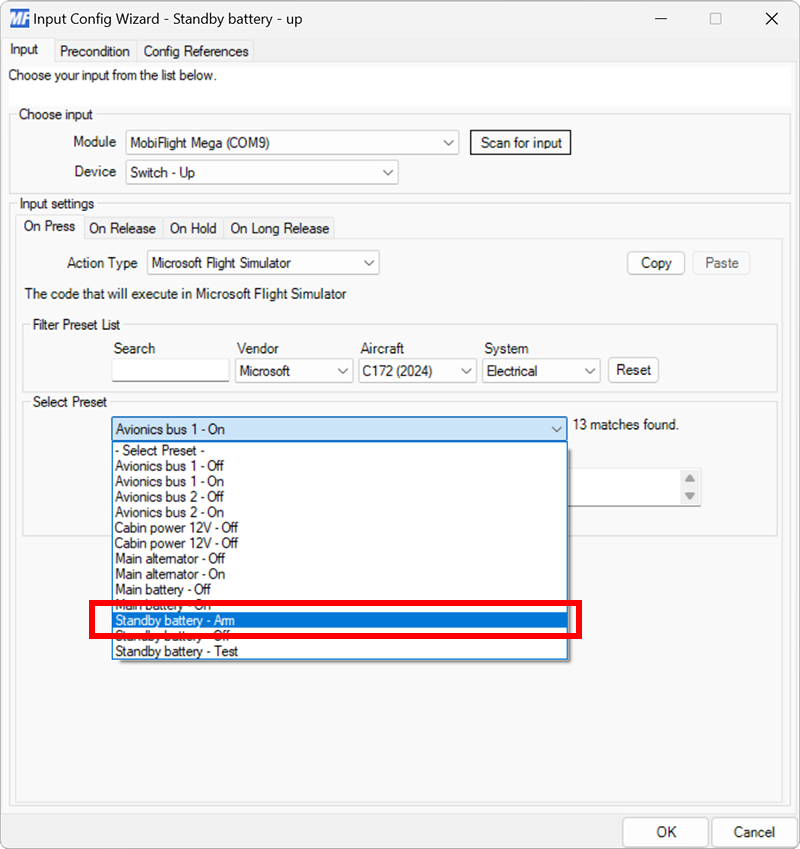
Select the standby battery arm preset
Use the preset list to select the Standby battery - Arm preset, then click Go back.
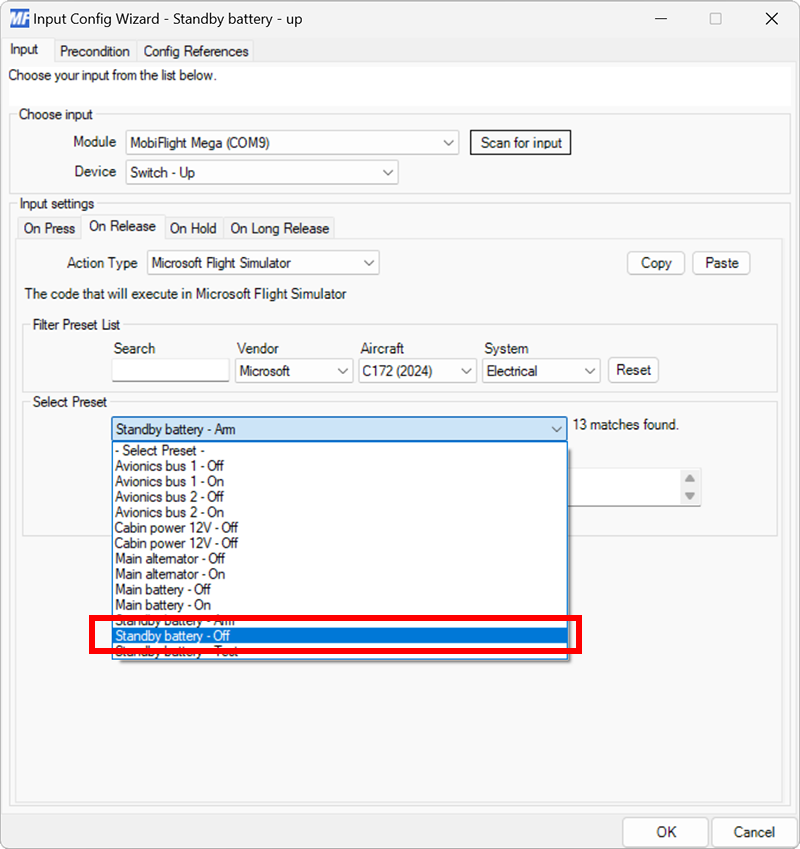
Configure the On Release action
Repeat steps 4 through 6 for the On Release action, selecting Standby battery - Off for the preset.
Note
For three-position switches, the On Release event is always set to the event that maps to the middle switch position.
Close the dialog
Click the Apply changes button to close the dialog, then configure the switch down position.
Configure the switch down position
Add a new input config
Click the Add Input Config button in the main MobiFlight window to open the input configuration dialog.
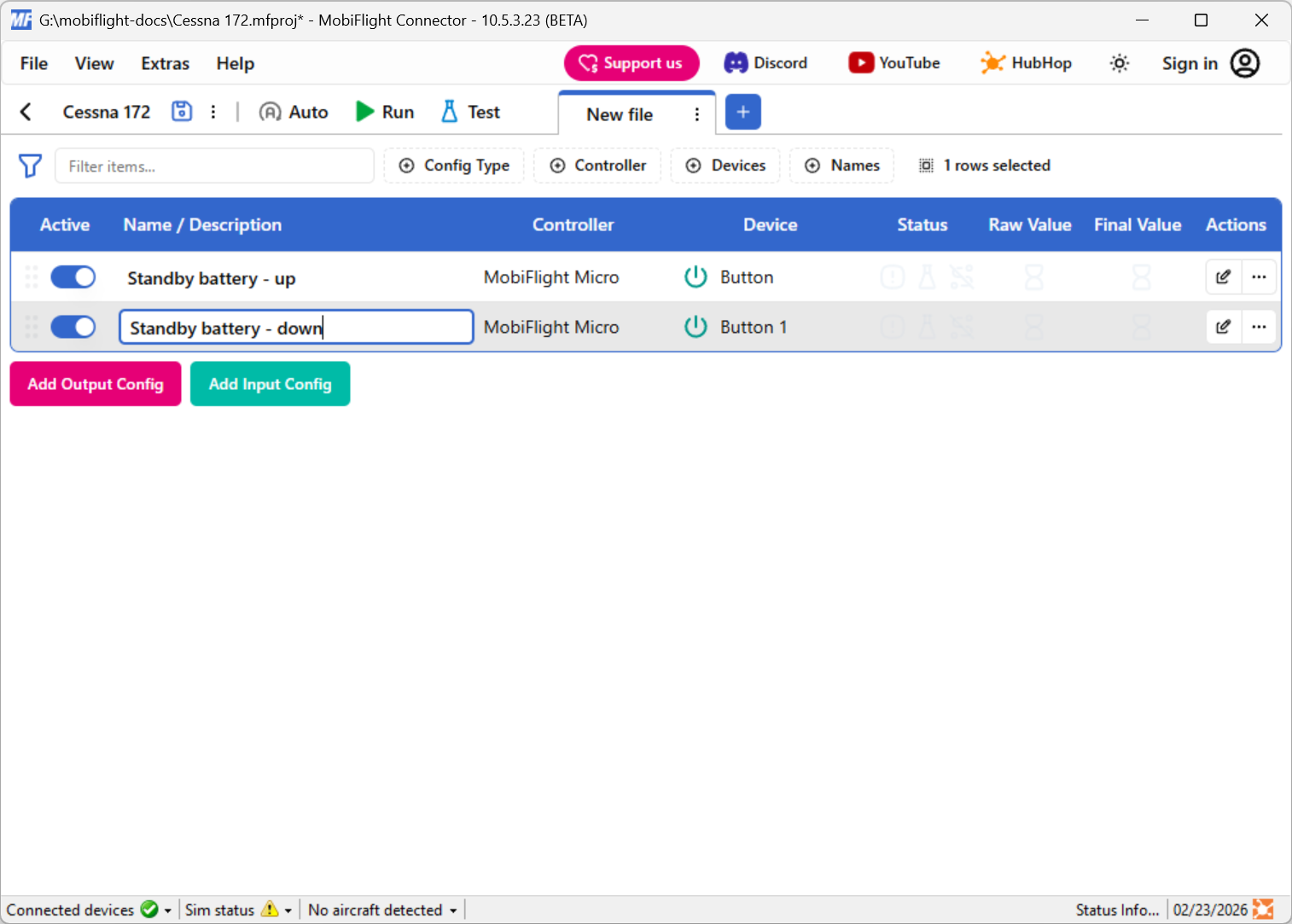
Name the config
Type in a meaningful name for the new config in the header of the dialog, for example Standby battery - down, and press enter to apply the change.
Select the board and device for the input
In the Trigger section, use the Select controller… and Select device… dropdowns to select your connected board and switch.
Alternatively, press the Scan for input button and toggle the switch to automatically detect and select the correct switch.
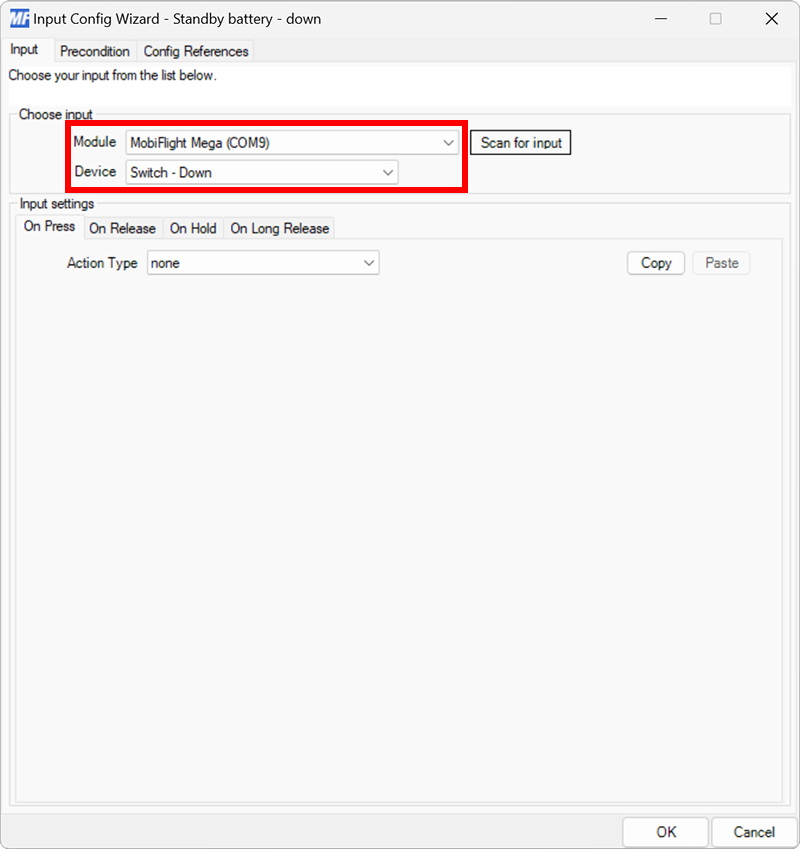
Set the On Press action type
In the Actions section, select the On Press button. Use the Action Type dropdown to select Microsoft Flight Simulator (all versions).
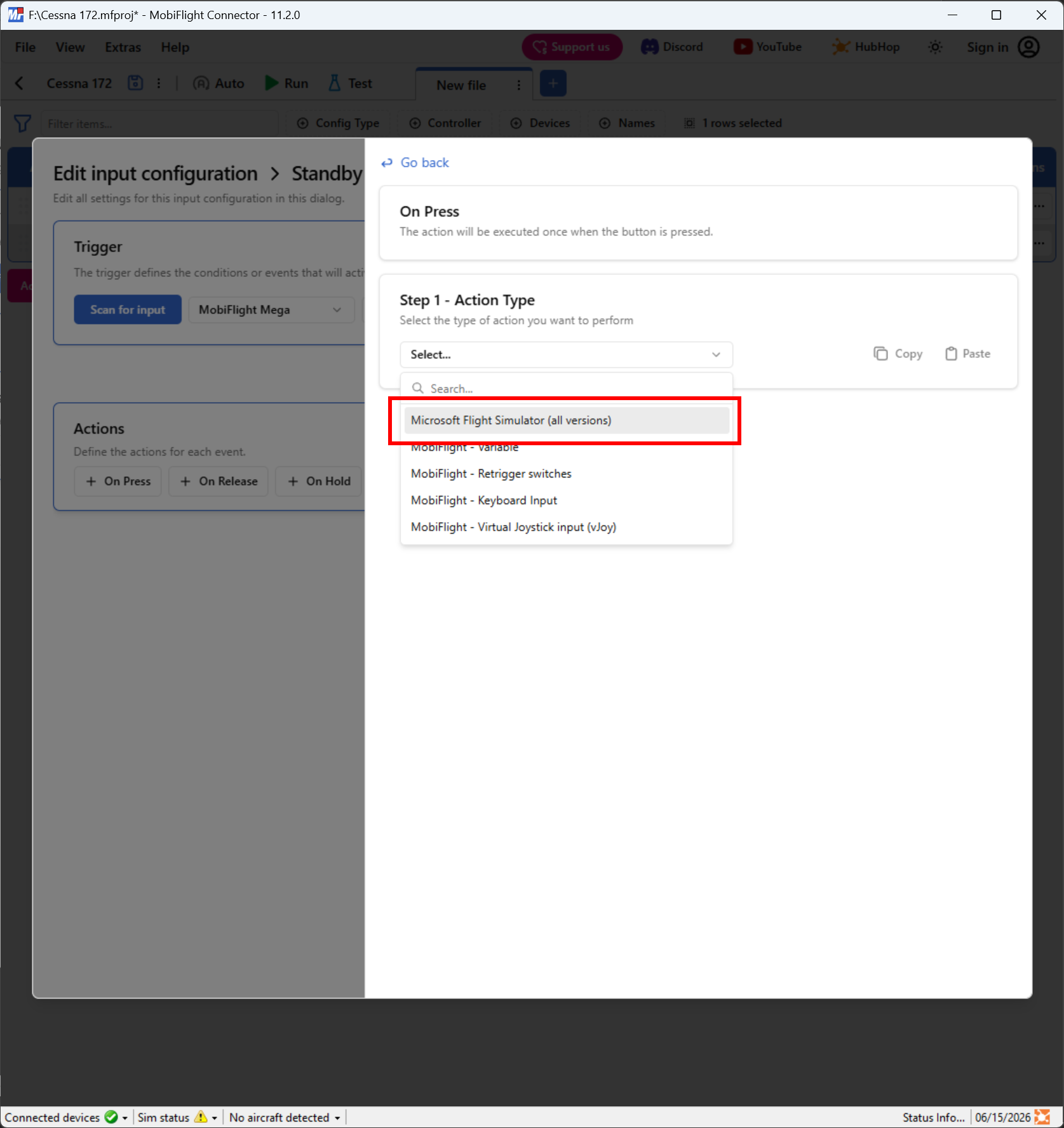
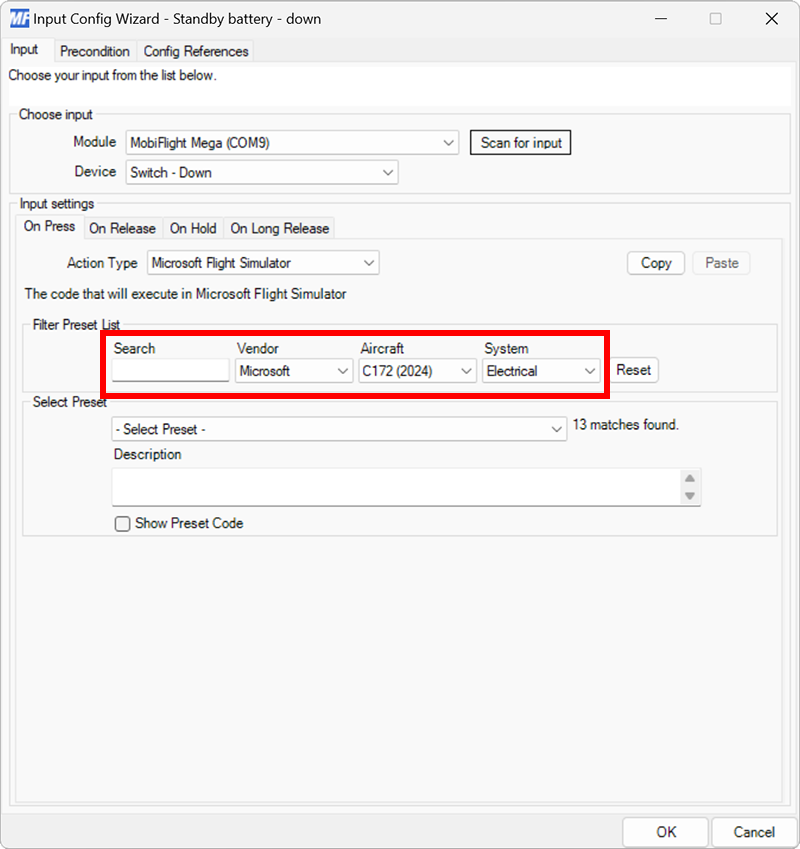
Filter the presets list
Use the Select preset dropdowns to filter by Microsoft, C172 (2024), and Electrical.
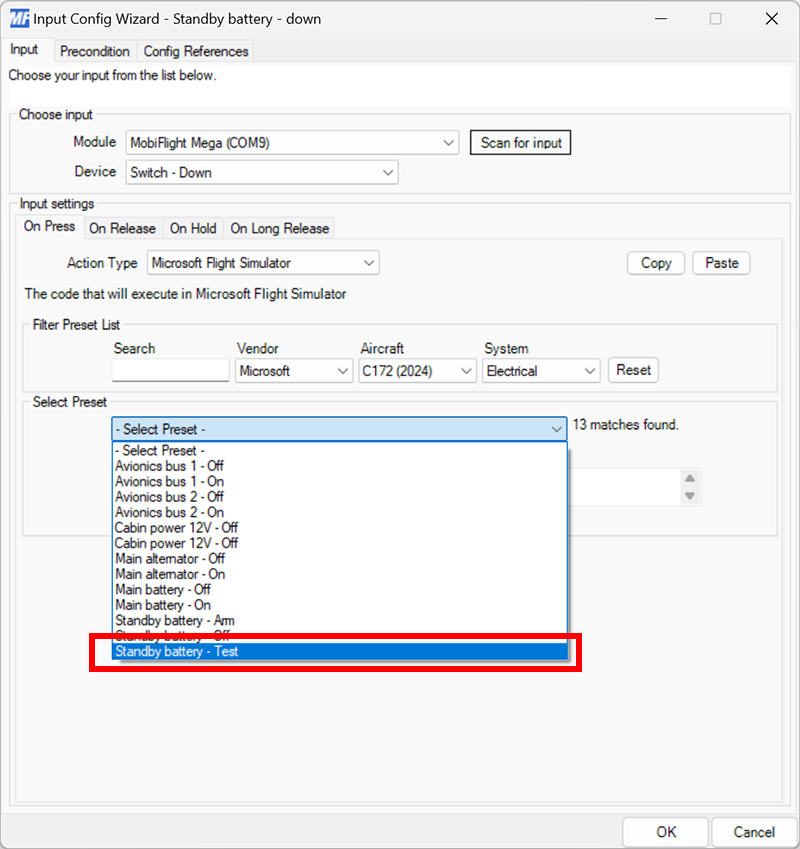
Select the standby battery test preset
Use the Select Preset dropdown to select the Standby battery - Test preset, then click Go back.
Configure the On Release action
Repeat steps 4 through 6 for the On Release action, selecting Standby battery - Off for the preset.
Note
For three-position switches, the On Release event is always set to the event that maps to the middle switch position.
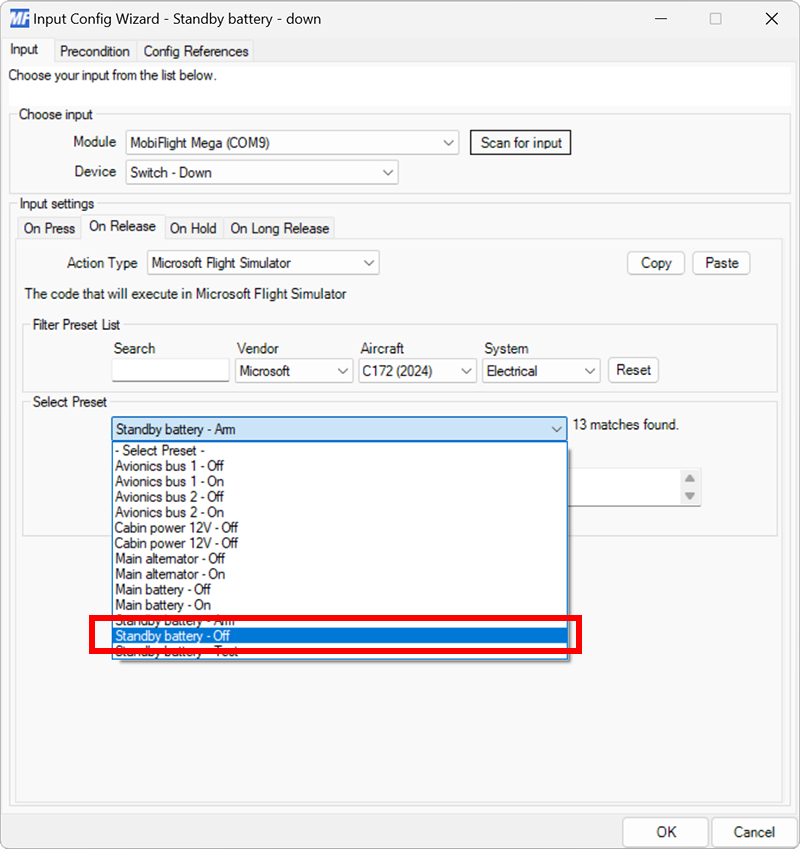
Close the dialog
Click the Apply changes button to close the dialog.
Try out the events
After configuring both inputs, spawn an airplane in Microsoft Flight Simulator.
Make sure the MobiFlight Run button is clicked in the toolbar, then try moving the switch to the three different positions to control the standby battery switch. The switch in the simulator should move to match the physical switch position.
Note
When activating the TEST position, the switch in the simulator will automatically return to the OFF position after a short delay. This is expected, as the simulator treats the TEST position as a momentary switch.